How to Fix Dynamics 365 Knowledge Article Workflow Timeout Error When Using Copilot Studio
If you’re building a custom agent for Dynamics 365 Knowledge Articles in D365 Customer Service with Copilot Studio, chances are you’ve come across Dian Taylor’s excellent YouTube walkthrough on creating a custom D365 Knowledge Article agent.
I followed Dian’s video almost line by line to implement a custom Knowledge Article search agent and everything looked perfect. Until it wasn’t! When I started chatting with agent, the workflow was triggered but remained stuck on following action for several minutes.
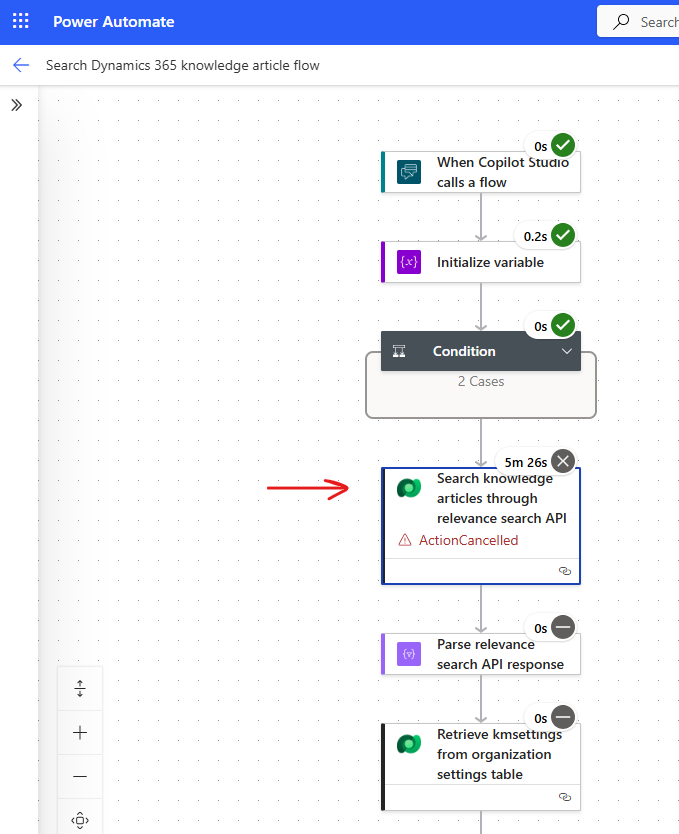
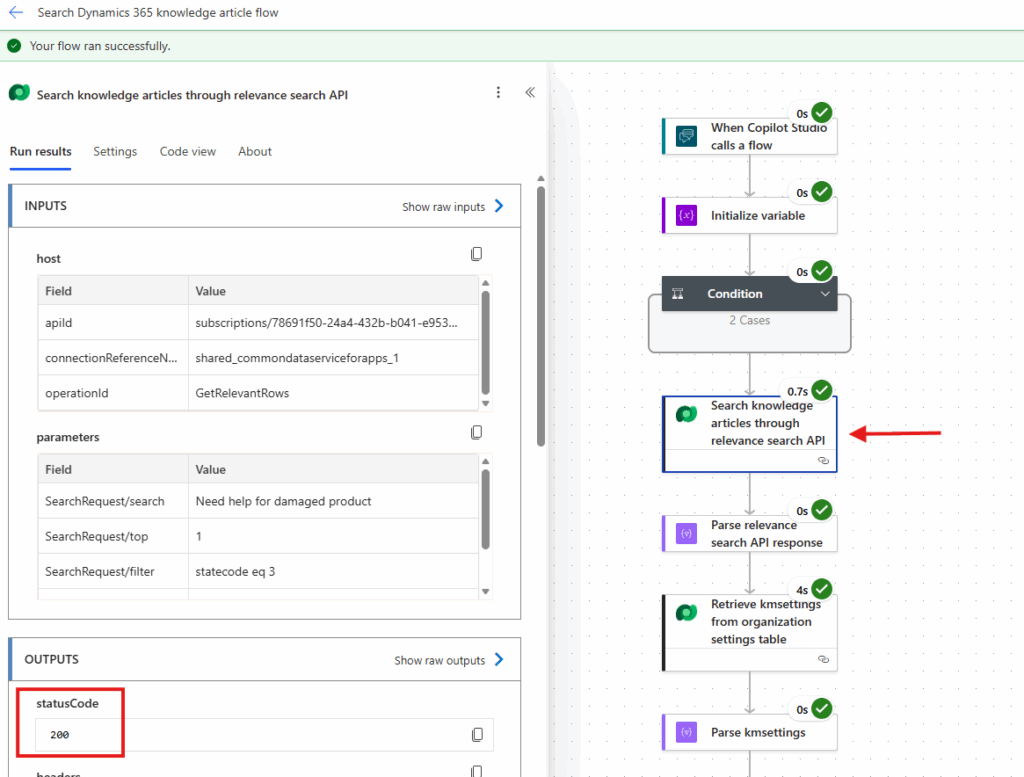
The action Search knowledge articles through relevance search API searched the KnowledgeArticle table. It retried multiple times, but I manually canceled the workflow to identify the root cause of the issue. Even after two/three attempts, the Agent returned a timeout error despite the logic being exactly as demonstrated in the video.
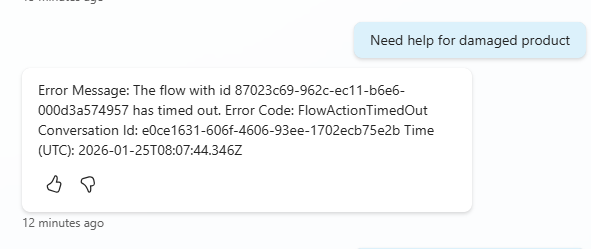
Error Code: FlowActionTimedOut
Message: The flow with id xxxxxx has timed out
Resolution:
In this post, I’m going to share how I resolved that error.
When I encountered the error, I checked all user permission and connector related issues, but everything seemed correct. It was simply a silent timeout!
I tried implementing the scenario in another tenant, and it worked without any errors! This made me think that there must be a problem with the Power Platform or Dataverse settings.
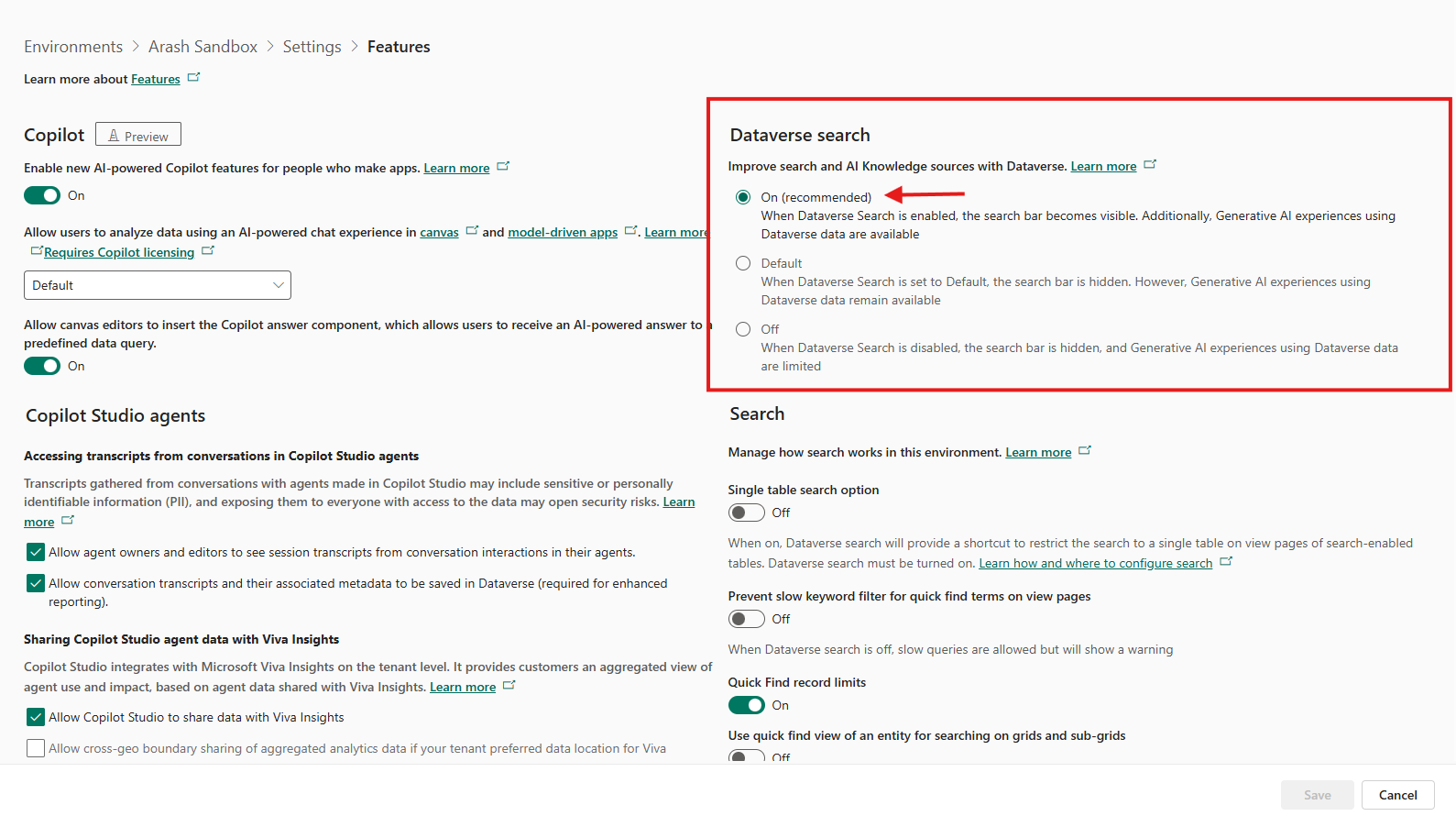
Since the action involved searching in Dataverse tables, I doubted it was an issue with the Search service or something similar. So, I opened the Power Platform Admin Centre and found that the Dataverse Search feature in that tenant was set to Default. I prefer the recommended setting, which is On, so I changed it and boom! The workflow progressed smoothly and the agent returned the response correctly without any errors!!
Here are the steps:
1- Open Power Platform Admin Center
2- Select the affected Environment
3- Go to: Settings -> Features
4- Locate Dataverse search
5- Change it to: On (recommended)
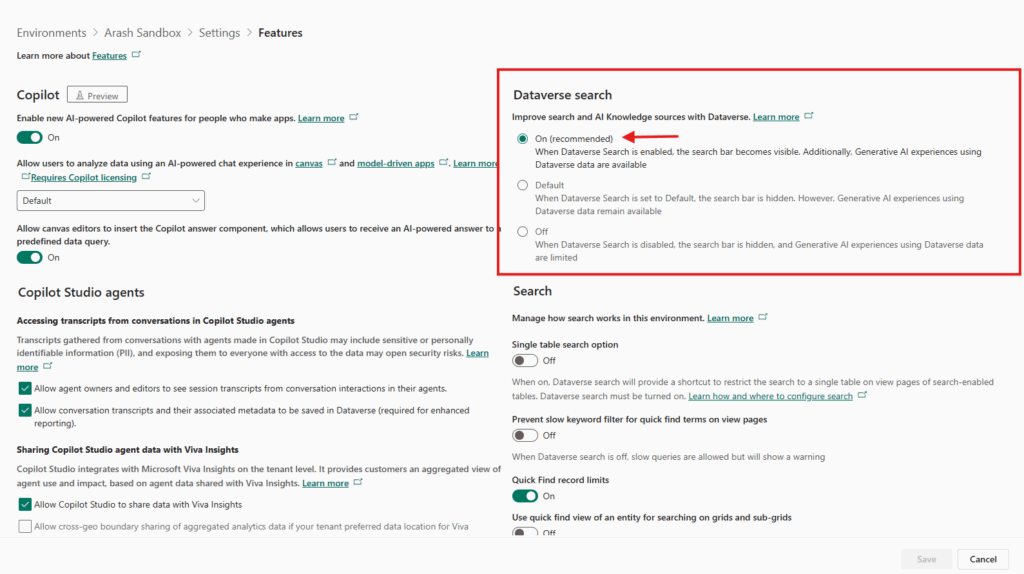
6- Save the change.(Give it a few minutes, Dataverse Search needs a bit of time to initialize.)
When I tried chatting with agent it worked as follows:
That’s it!
I hope it was helpful and saved your time. 🙂